XSlope Studio
XSlope Studio is a cross-platform desktop application that wraps the xslope
engine in a graphical interface. It lets you open a problem, view and edit every
input graphically, run limit-equilibrium (LEM), seepage, and finite-element (FEM)
analyses, and view the results — without writing code or running a notebook.
Studio is a front end to the same xslope package documented elsewhere on this
site: it loads and saves the standard Excel input format, and every plot you see
is produced by the same plot_* functions used from scripts. Anything you can do
in Studio you can also do from Python; Studio simply makes the common workflow
point-and-click.
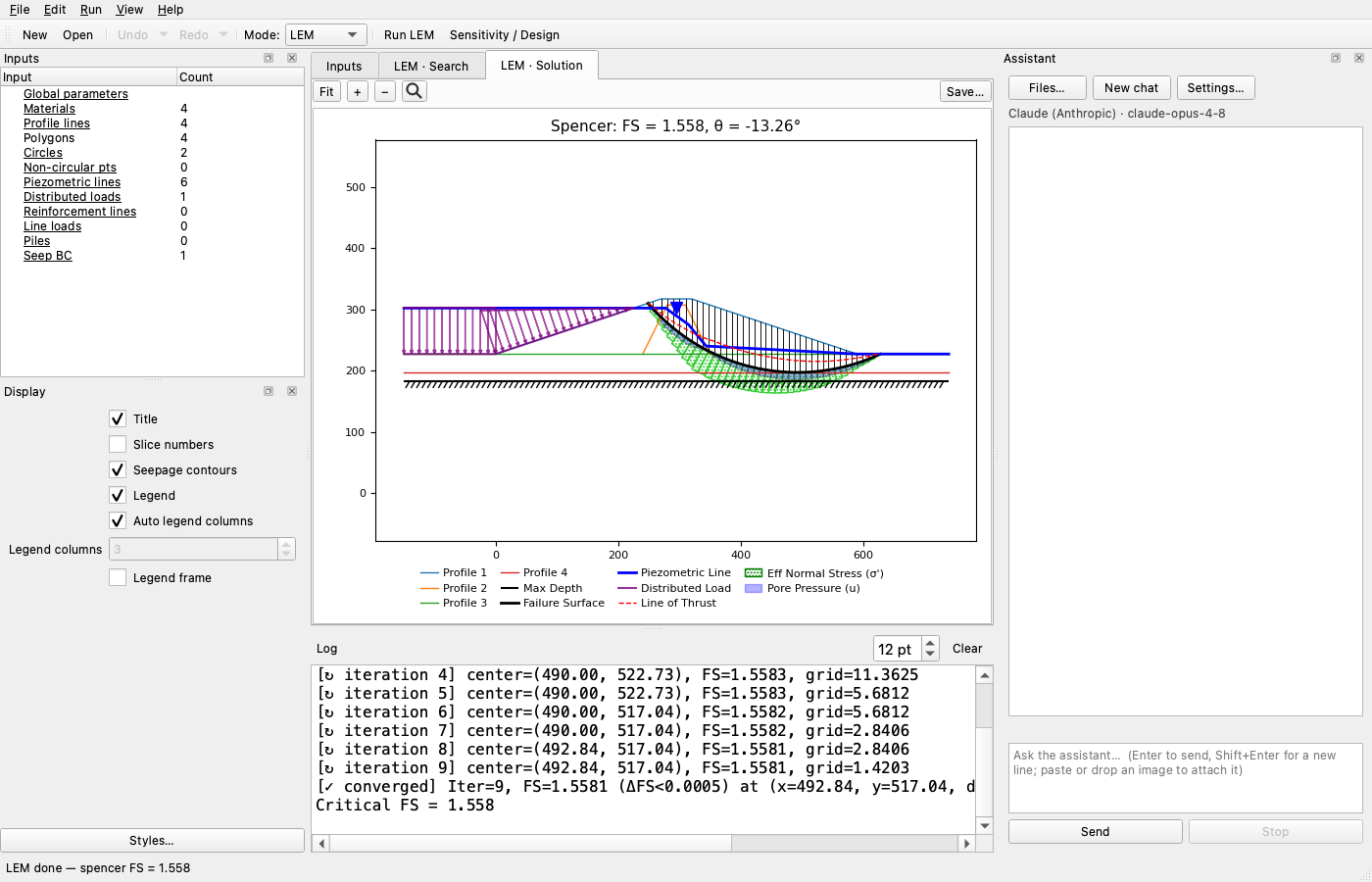
What you can do
- Open a filled-out Excel problem and see its geometry and inputs rendered.
- Edit every input through forms and tables; the canvas updates after each edit.
- Double-click a feature on the canvas to open its editor directly.
- Undo / redo any edit, with a labeled history of every change.
- Run LEM (single surface, automated search, or reliability), build a mesh, and run seepage and FEM analyses, each with a run-options dialog.
- View results across dedicated tabs (search, solution, reliability, seepage, FEM), with a context-sensitive Display panel for per-view plot options.
- Export any view as a PNG/PDF/SVG image or as a DXF.
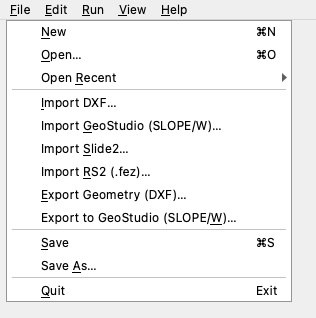
- Import models from other tools — DXF, GeoStudio (SLOPE/W), Slide2, and
RS2 (
.fez) — and export back to DXF or GeoStudio. - Ask the built-in AI assistant to build inputs, run analyses, and script parameter studies in natural language.
- Save back to the same Excel format (and the
{stem}_mesh.json/{stem}_seep.csv/ style sidecars alongside it).
Installation
Native installers — coming with Phase 7
Packaged native installers (.dmg for macOS, .msi for Windows) are planned
but not yet available. This section, and the App management
page (updates, uninstall, where files live), will be completed when the
installers ship. Until then, install Studio with pip as below.
Install with pip
Studio ships inside the xslope package behind the gui extra, which adds
PySide6 (the Qt GUI toolkit):
pip install "xslope[gui]"
To also run seepage and FEM analyses from Studio, include the fem extra (which
adds gmsh for meshing). The two extras combine:
pip install "xslope[gui,fem]"
To enable the AI assistant, add the ai extra (which pulls the
provider library). Studio runs without it — the assistant dock simply reports
that the dependency is missing:
pip install "xslope[gui,fem,ai]"
Linux
As with the base package, gmsh on Debian/Ubuntu Linux needs system OpenGL
libraries. Run apt-get update && apt-get install -y libgl1 libglu1-mesa
once before installing the fem extra. macOS and Windows need no extra step.
Launch
Installing the gui extra registers a console command:
xslope-studio
This opens the Studio window. From there, use File → Open to load an Excel problem, or File → New to start an empty project and build it up with the editors (or the assistant).
How the documentation is organized
- The interface — the window layout: the canvas and its zoom/pan, the Inputs tree, the Display and Log docks, the result tabs, and the analysis-mode selector.
- Editing inputs — the input editors, double-click-to-edit on the canvas, undo/redo with labeled history, and the file lifecycle (New / Open / Save / Save As).
- Running analyses — building a mesh and running LEM, seepage, and FEM; the result views and their Display options; and image / DXF export.
- AI assistant — the chat panel: choosing a model, autonomy modes, vision, and what it can do.
- App management — (placeholder) installing updates, uninstalling, and where Studio stores files.
Studio vs. the xslope library
Throughout these pages, Studio means the desktop application; xslope
means the Python engine it wraps (the import is still import xslope). The
engine and the file format are documented under the Usage Guide, Limit
Equilibrium Method, Seepage Analysis, and Finite Element Method
sections of this site.