DXF Import/Export
XSLOPE exchanges geometry with CAD software through the DXF format, using the
xslope.cad module. There are three things you can do:
- Export a model to DXF — write a complete model out to a layered DXF for documentation, sharing, or editing in CAD
(
export_dxf). - Import polygons from a DXF — read material-zone polygons from a DXF and write
them to the
polygonsheet of an input template (import_dxf). - Save a plot to DXF — save any XSLOPE plot (inputs, solution, search,
seepage, FEM) directly to a layered DXF, the analog of saving a PNG
(
save_dxf=True).
The common thread across all three is layers: when XSLOPE writes a DXF it
places each feature or plotted artifact on its own named layer, and when it
reads a DXF it uses layer names to identify materials. Layer names are
uppercased, with spaces and DXF-illegal characters (< > / \ " : ; ? * | = plus
the backtick) replaced by underscores — so a material named "Silty Clay" becomes
layer SILTY_CLAY.
DXF in the desktop app
XSlope Studio exposes this functionality graphically: File → Export Geometry (DXF) writes the structured layered DXF, the per-view Save… button exports the rendered picture, and File → Import DXF… opens a feature-aware wizard that maps each layer to an input feature. See Studio → DXF import and export.
Exporting a model to DXF
The export_dxf function in the xslope.cad module writes everything present in the loaded model to a layered DXF:
from xslope.fileio import load_slope_data
from xslope.cad import export_dxf

slope_data = load_slope_data("my_slope.xlsx")
export_dxf(slope_data, "my_slope.dxf")          # DXF version R2010 by default
Each feature in the model is written to a named layer:
| Model feature | DXF entity | Layer |
|---|---|---|
| Material zones | closed LWPOLYLINE |
one per material, named after it (e.g. CLAY_CORE) |
| Profile lines | open LWPOLYLINE |
PROFILE_<material> |
| Failure surface | LWPOLYLINE |
FAILURE_SURFACE |
| Search circles | CIRCLE + POINT |
SEARCH_CIRCLES |
| Reinforcement lines | LINE |
REINFORCEMENT |
| Distributed loads | LWPOLYLINE |
DLOADS |
| Piezometric / water table | LWPOLYLINE |
PIEZO |
Material-zone layers are named after the material itself. Every other layer above
(the PROFILE_ prefix and the fixed feature names) is a reserved name — these
are the layers that import recognizes and skips, since import reads only material
zones (see below).
The result opens directly in any CAD program, with each feature on a layer you can show, hide, or restyle.
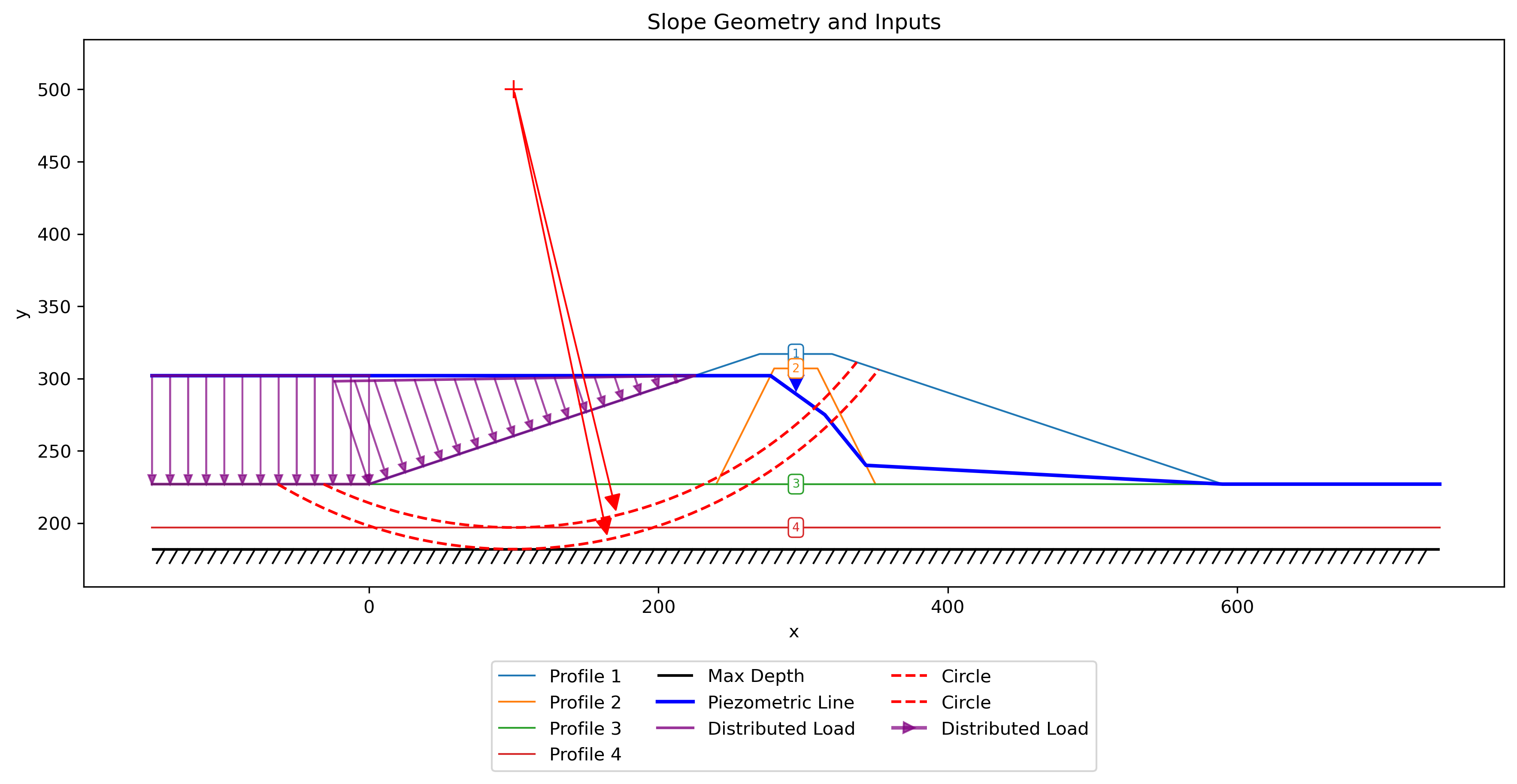
A real example, exported from the Earth Dam sample:
xslope_earth_dam_up.dxf — material zones
(SHELL, CORE, CLAY, SAND), the profile lines, the piezometric line, the
distributed load, and the search circles, each on its own layer.
Excel input file: xslope_earth_dam_up.xlsx
Inputs plotted with the XSLOPE plot_inputs() function:
Exported DXF file: xslope_earth_dam_up.dxf
Exported DXF file opened in CAD:

Importing polygons from a DXF
Import reads geometry in the other direction: a DXF drawing of a cross-section
becomes the polygon sheet of an input template.
Import is polygons-only
Import reads material zones and nothing else — material zones are the one
feature where CAD geometry saves real effort (a complex closed shape that is
tedious to type). Piezometric lines, distributed loads, and search circles are
quick to enter directly in the template, so they are not imported. The reserved
feature layers above (PROFILE_*, FAILURE_SURFACE, SEARCH_CIRCLES,
REINFORCEMENT, DLOADS, PIEZO) are ignored on import; every other
layer is treated as a material zone, and its layer name becomes the material
name.
Step 1 — Organize the CAD drawing
Draw each material zone as a closed polyline on a layer named after the material. All polylines on a layer are assigned to the same material. The importer is tolerant of common real-world variations:
- both lightweight
LWPOLYLINEand heavyweightPOLYLINEentities, - arc segments (polyline bulges) — tessellated to straight segments,
- unclosed polylines — closed automatically (with a warning),
- a zone drawn as loose
LINEsegments — stitched into a ring by shared endpoints.
Step 2 — Review the extracted zones
Before importing, print a summary to confirm the extraction — that the right zones were found, the geometry looks correct, and nothing is missing or duplicated:
from xslope.cad import summarize_dxf

summarize_dxf("my_slope.dxf")
Poly ID │ Layer Name         │ Vertices │       Area
────────┼────────────────────┼──────────┼───────────
      1 │ EMBANKMENT         │        4 │    2000.00
      2 │ FOUNDATION         │        4 │    4250.00

Unique material layers (2): EMBANKMENT, FOUNDATION
Step 3 — Import into a template
import_dxf copies an input template, writes the extracted polygons to the
polygon sheet, and seeds the mat sheet with the layer names as material
names:
from xslope.cad import import_dxf

result = import_dxf(
    "my_slope.dxf",                          # source DXF
    "docs/inputs/input_template.xlsx",       # template to copy
    "my_slope.xlsx",                         # output input file
)
print(result["layer_to_mat"])   # {'EMBANKMENT': 1, 'FOUNDATION': 2}
print(result["warnings"])       # e.g. ["open polyline on layer 'SAND' auto-closed"]
By default each unique layer (in first-appearance order) is assigned material IDs
1, 2, 3, …. To control the mapping, pass material_map:
import_dxf(
    "my_slope.dxf", "docs/inputs/input_template.xlsx", "my_slope.xlsx",
    material_map={"EMBANKMENT": 1, "FOUNDATION": 2},
)
For finer control, the underlying reader is available directly:
from xslope.cad import dxf_to_polygons

polygons, warnings = dxf_to_polygons("my_slope.dxf")   # optional: layers=[...]
# polygons -> [{'coords': [(x, y), ...], 'layer': 'EMBANKMENT'}, ...]
Step 4 — Fill in material properties
Import seeds only the material names. Open the generated my_slope.xlsx, go to
the mat sheet, and fill in the strength and other properties for each material.
The file is not analysis-ready until the material properties are provided.
Saving a plot to DXF
Any XSLOPE geometry plot can be saved directly to a layered DXF with a
save_dxf=True argument — the exact analog of the existing save_png option.
Unlike export_dxf (which writes the input model), this captures what the plot
shows — slices, stress diagrams, the critical surface, contours, the mesh — so it
works for solution, search, seepage, and FEM plots:
from xslope.plot import plot_inputs, plot_solution, plot_circular_search_results

plot_inputs(slope_data, save_dxf=True)
plot_solution(slope_data, slice_df, surface, results, save_dxf=True)
plot_circular_search_results(slope_data, fs_cache, save_dxf=True)
from xslope.plot_seep import plot_seep_solution
from xslope.plot_fem import plot_fem_results

plot_seep_solution(seep_data, solution, save_dxf=True)   # flow net + contours
plot_fem_results(fem_data, solution, plot_type=['deformation', 'shear_strain'],
                 save_dxf=True)                           # one DXF per panel
The DXF is named like the PNG the plot would save (e.g.
plot_spencer_fs_=_1.242.dxf). FEM result figures are multi-panel, so they write
one DXF per plot type (fem_results_deformation.dxf,
fem_results_shear_strain.dxf, …).
Each plotted artifact lands on its own layer:
| Plot | DXF layers |
|---|---|
| Inputs / solution | one layer per material zone, MAX_DEPTH, SLICES, FAILURE_SURFACE, EFF_NORMAL_STRESS, PORE_PRESSURE, LINE_OF_THRUST, PIEZO, DLOADS, TENSION_CRACK, CIRCLES |
| Search results | CRITICAL_SURFACE, TESTED_SURFACES, CIRCLE_CENTERS, SEARCH_PATH |
| Seepage | HEAD_CONTOURS, FLOWLINES, PHREATIC, CONTOUR_FILL, ZONE_FILL, MESH, MESH_BOUNDARY, MESH_NODES, SEEP_FIXED_HEAD, SEEP_EXIT_FACE |
| FEM | MESH, MESH_FILL, <quantity>_CONTOURS (e.g. VP_MAX_SHEAR_STRAIN_CONTOURS), STRESS_CONTOURS, REINFORCEMENT, PILES |
Vector fields
Velocity and displacement vector (quiver) fields do not export cleanly to DXF — the rest of that plot's geometry is written, but the arrows are omitted.
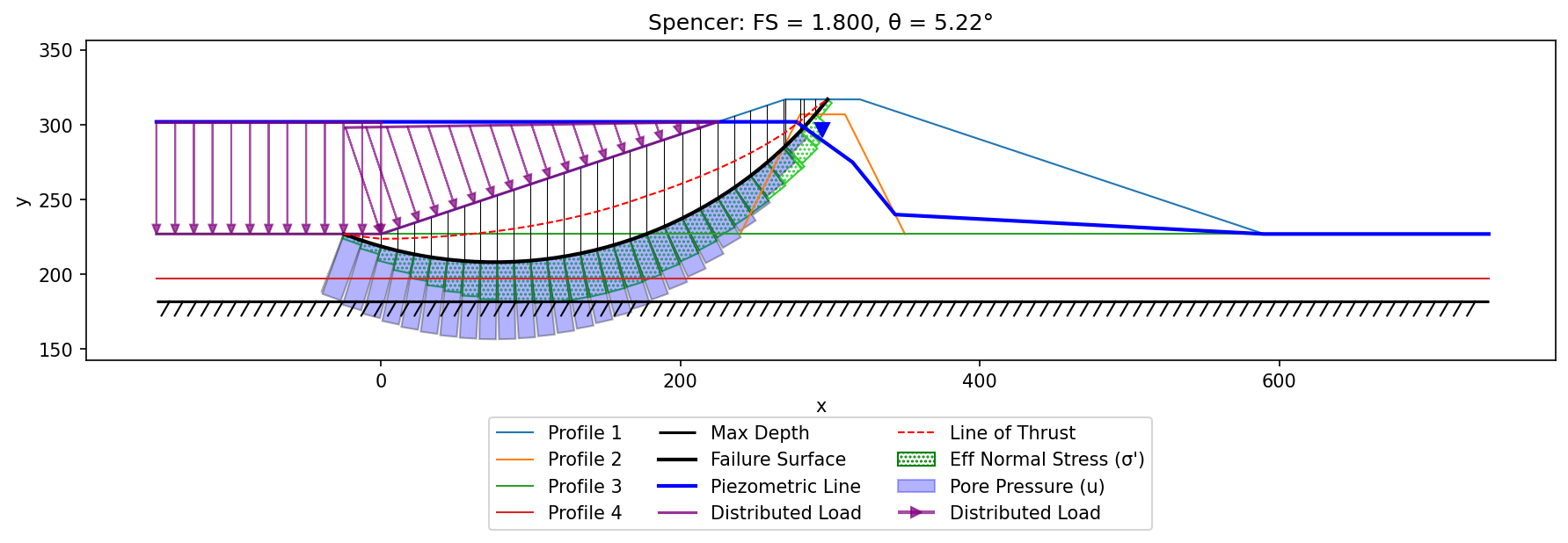
PNG generated from the plot_solution function:
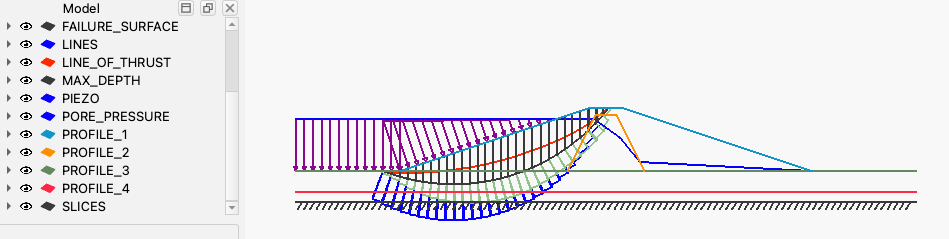
DXF file generated from the same plot using the save_dxf option:
Notes and limitations
- Import is polygons-only. Other features (piezo, loads, circles) are entered in the template; export and plot-saving write them, but import ignores their reserved layers.
- Material properties are not in the DXF. Import seeds names only; properties
are filled in on the
matsheet afterward. - Round-trip. Exporting a model and re-importing it reproduces the material-zone geometry exactly (feature layers are written by export but ignored on import).
- Format. DXF only for now. DWG requires Autodesk libraries or the ODA File Converter and may be added based on demand.