AI Assistant
Studio includes a dockable chat assistant that drives the app and the engine
with natural language (and images). It goes well beyond the standalone
Claude Code skill: rather than only building an input
file from a sketch, it can perform any interaction with the project and the
xslope Python API — build or edit inputs, run analyses, script parameter studies,
post-process results, and explain or debug what happened.
Examples of what you can ask:
- "Add a piezo line 2 ft below the crest and re-run Spencer."
- "Vary the slope angle from 20° to 30° and plot FS vs. angle."
- "Why did the SSRM not converge?"
- "Build this slope from the attached sketch." (with an image)
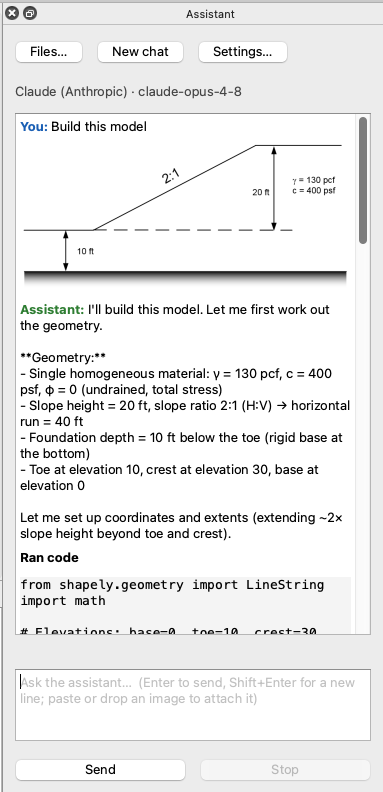
Getting the assistant
The assistant needs the provider library, which ships in the ai extra. How you
get it depends on how you installed Studio:
- Packaged app (
.dmg/.msi) — included. The provider library is bundled in the installer, so the assistant works out of the box; there is nothing to add. - From Python / pip — add the
aiextra:pip install "xslope[gui,ai]".
Either way you still choose a provider and enter credentials in Settings… (below). Without the library, Studio runs normally but the dock reports that the dependency is missing. See Installation.
How it works
The assistant is an agent with code execution, not a chatbot. Its core tool is
an in-process Python kernel: the model writes small Python snippets, and Studio runs
them with xslope imported and the live project in scope — doc (the project),
slope_data (its inputs), and results are all preloaded, along with helpers like
run_lem() and sensitivity(). Most requests reduce to "write and run a little
Python, show me the figure or number," exactly like the notebook workflow.
Because edits go through the same path as the editors, anything the assistant changes:
- renders immediately on the canvas,
- lands on the undo stack as a labeled step ("Assistant: materials, dloads"), so you can revert it, and
- invalidates stale results/mesh just like a manual edit.
The assistant builds into the live document, not a file. Review the result on the canvas, then persist it with Save As. (An empty project is opened automatically if none is, so the first snippet works.)
Choosing a model
The assistant is bring-your-own-model. A Settings… button in the dock opens a dialog to pick the provider and model and store credentials:
| Provider | Notes |
|---|---|
| Claude (Anthropic) | Tool use + vision; prompt caching keeps the large system prompt cheap on repeat turns. |
| OpenAI / GPT | Tool use + vision. |
| Ollama (local) | Runs models on your machine — free, no API key, fully offline. Capability depends on the chosen model. |
| DeepSeek | Tool use; vision per model. |
| Z.ai (GLM) | Tool use; vision per model. |
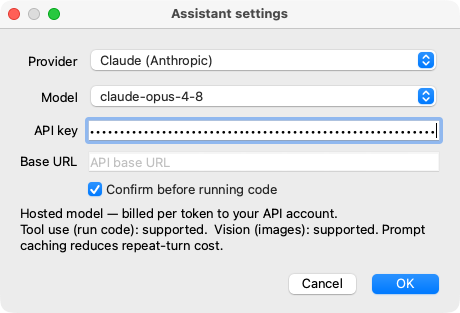
API keys are stored in the OS keychain (not in plaintext), and the Ollama base URL is configurable for local models. The dock shows the active provider · model, and a caption warns when the selected model can't (or may not) run code or accept images, so the UI degrades gracefully.
Autonomy: confirm vs. auto
Running model-written code is powerful and carries the same trust model as any coding agent — the code runs as you, and can read and write files. Studio gives you an autonomy mode, switchable in the dock:
- Confirm (default) — you review and approve each code run before it executes.
- Auto — the assistant runs code without prompting.
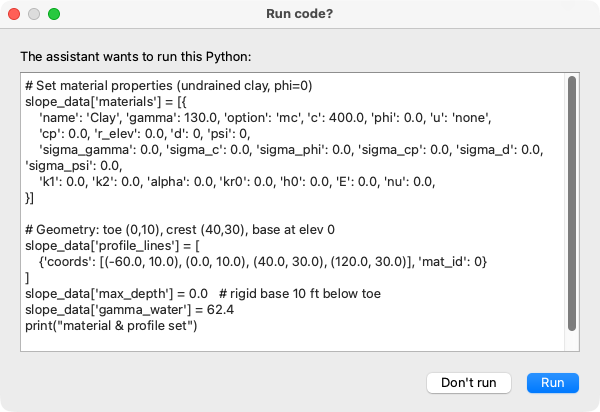
Every action is visible in the transcript as a collapsible "ran code" block, and a Stop button halts the agent at any time. Because the kernel runs in Studio's own process, a bad snippet could hang the app — the confirm mode and Stop button are your guardrails.
Network egress
Hosted models (Claude, OpenAI, DeepSeek, Z.ai) send your prompts and any attached images off your machine. Ollama stays local. Choose accordingly for sensitive work.
Vision and chat UX
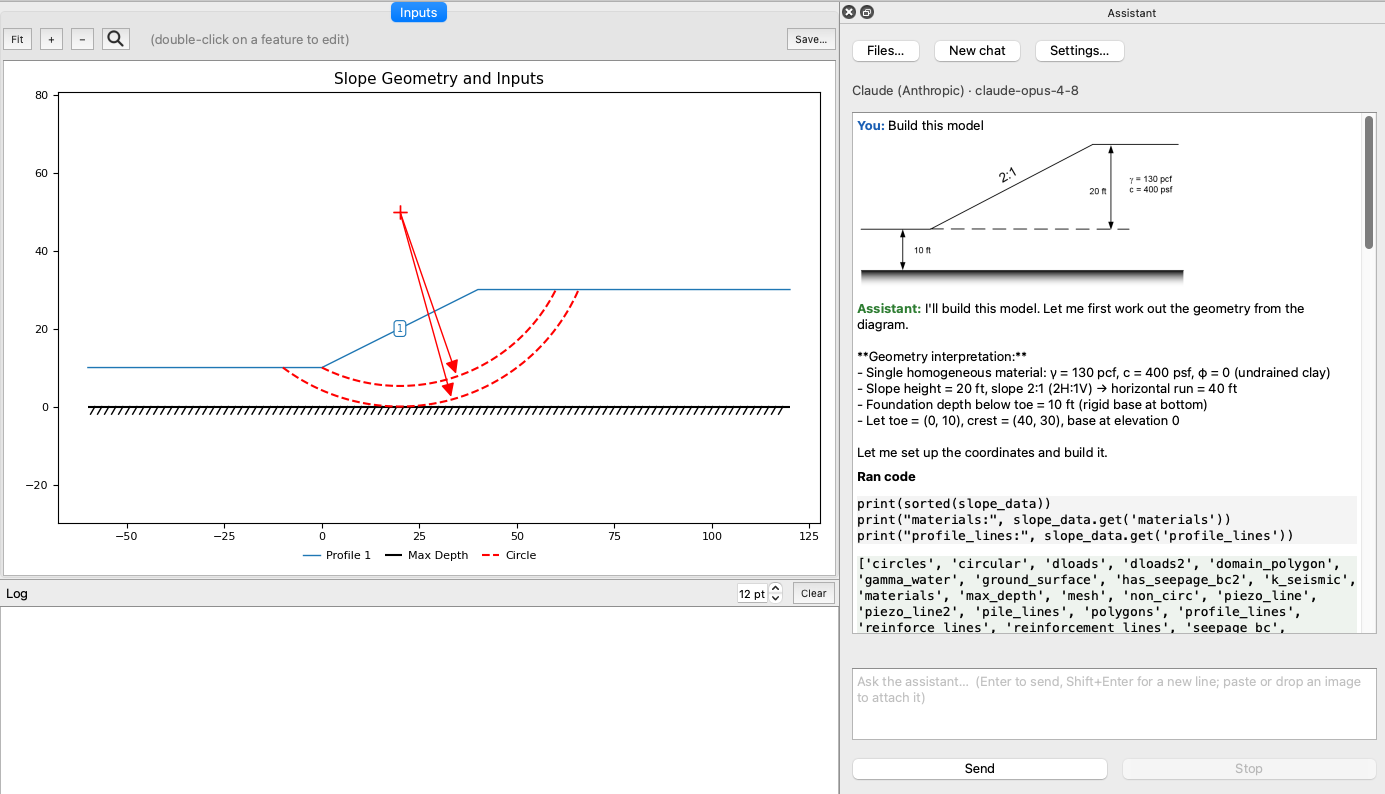
- Images — paste or drop an image into the chat (e.g. a hand sketch or a screen capture) for models that support vision.
- Inline figures — plots the assistant produces appear inline in the transcript.
- New chat — starts a fresh conversation and resets the kernel.
- Press Enter to send; the transcript renders markdown with collapsible code blocks and surfaces actionable error messages.
Relationship to the Claude Code skill
The standalone /xslope Claude Code skill remains a
first-class, file-first workflow for the CLI/IDE. Studio's assistant reuses that
skill's schema knowledge (the sheet/category layout, geometry rules, examples)
as system context, but takes a document-first path: it populates the live
slope_data rather than writing an .xlsx. The two coexist — the file-first skill
and the document-first Studio assistant are two front ends to the same engine.